
Design work used to slow me down. Switching between tools, tweaking layouts, and second-guessing colors often took more time than writing the actual content. That changed when ChatGPT 5.2 introduced its Canva integration.
Now, instead of building designs from scratch, I simply explain what I want and it shows up as a ready-to-edit design in Canva. In this post, I’ll walk you through how Canva works with ChatGPT 5.2, how I use it in real projects, and why it’s become part of my daily workflow
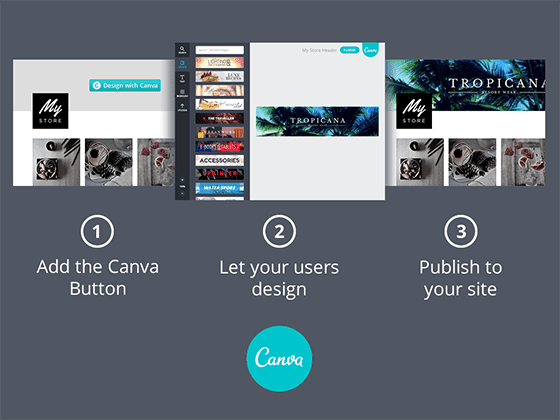
What Is Canva + ChatGPT 5.2 (In Simple Terms)?
The Canva integration in ChatGPT 5.2 lets you create and edit designs using plain English. You describe the design, and ChatGPT connects directly with Canva to build it for you.
You don’t need design experience. You don’t need to start with a blank page. You just need a clear idea of what you want to create.
Why This Feature Feels Like a Big Deal
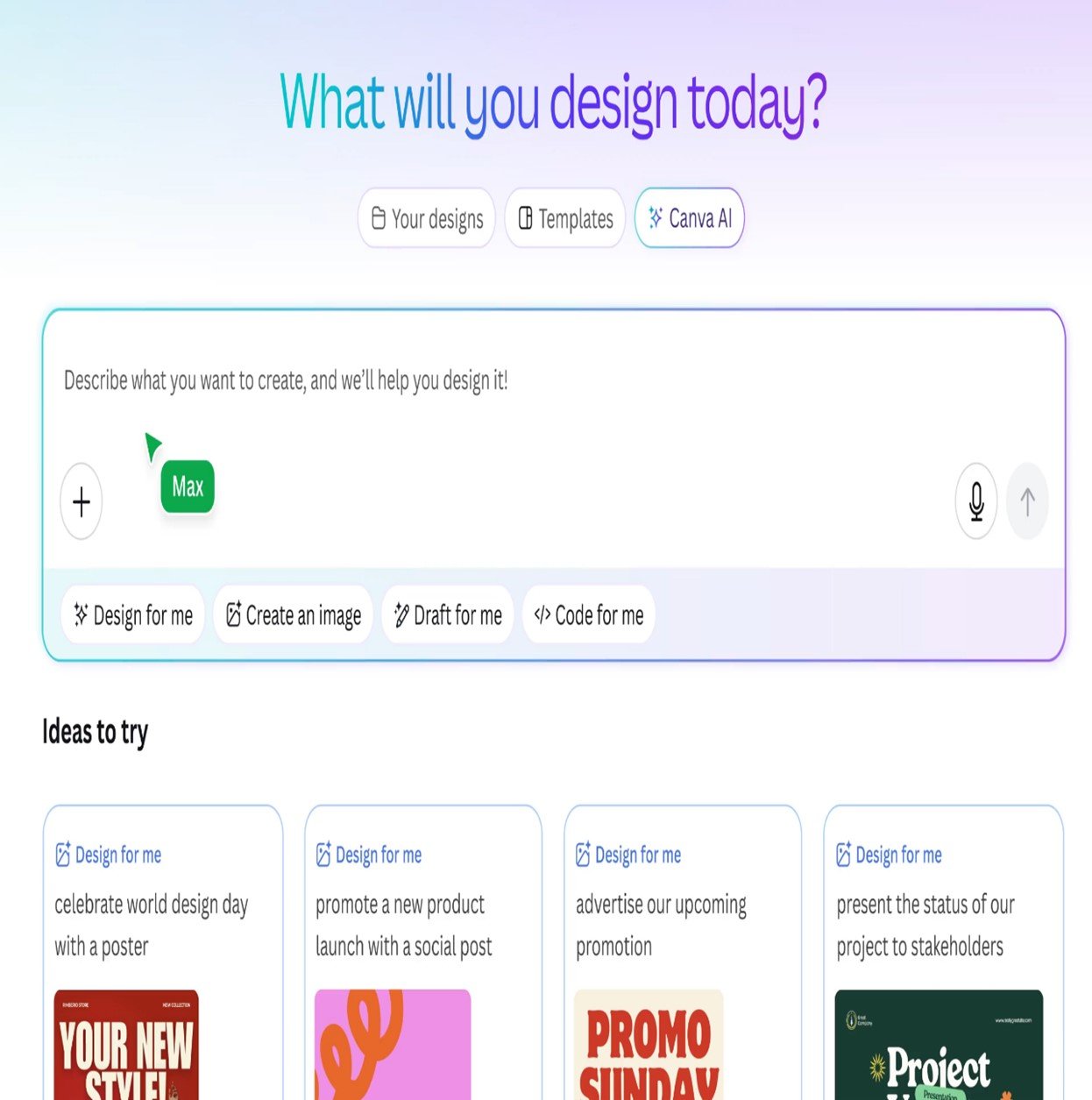
What makes this integration special isn’t just automation, it’s how natural it feels. You’re no longer clicking through templates endlessly. Instead, you’re having a conversation and watching the design come together.
Here’s what stood out to me:
- Designs are created in minutes, not hours
- Edits feel effortless, just ask, and it changes
- You stay focused on ideas instead of layout mechanics
How to Connect Canva with ChatGPT 5.2
Connecting Canva to ChatGPT takes less than a minute.
- Log into ChatGPT
- Open Settings → Apps & Connectors
- Select Canva and authorize your account
Once connected, ChatGPT can create designs directly inside your Canva workspace.
How I Create Canva Designs Using ChatGPT
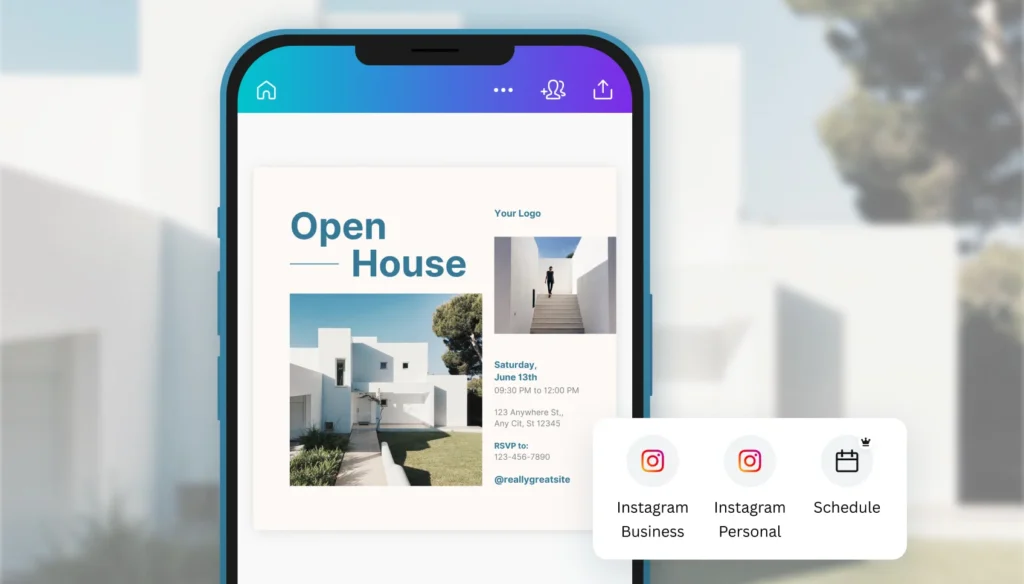
Instead of opening Canva and guessing where to start, I type prompts like:
- “Create an Instagram post in Canva with a clean, professional look.”
- “Design a 5-slide presentation explaining Revenue Cycle Management.”
- “Make a bold YouTube thumbnail with high-contrast text.”
Editing Designs Without Touching the Editor
Once the design appears, I refine it by simply talking:
- “Make the headline stronger”
- “Change the background to dark blue”
- “Add a call-to-action at the bottom”
- “Rewrite the text to sound more conversational”
The design updates instantly. No dragging, resizing, or overthinking.
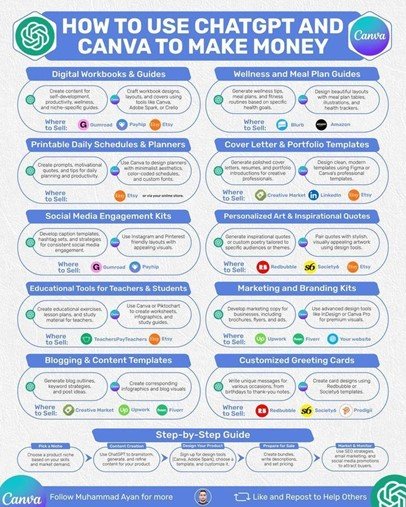
When I Switch to Canva’s Editor
This balance between AI assistance and manual control is what makes the workflow feel complete.
Where This Works Best for Me
Here’s where I personally get the most value:
- Social media posts – Fast, consistent, on-brand
- Presentations – Great starting point that saves hours
- Blog graphics – Headers and visuals without design stress
- Marketing materials – Flyers, banners, promo visuals
Tips That Actually Improve Results
After using this feature for a while, I’ve learned a few things:
- Be specific about tone and audience
- Mention colors, style, and platform
- Ask for revisions instead of starting over
- Reuse designs across formats (post → story → slide)
Small prompt tweaks make a big difference.
How This Compares to My Old Design Workflow
Before:
- Start with a blank canvas
- Try multiple templates
- Spend too long on spacing and fonts
Now:
- Describe the idea
- Review the design
- Make quick refinements
The difference is night and day.
Is Canva with ChatGPT 5.2 Worth Using?
This isn’t about replacing designers. It’s about removing friction. You spend less time building and more time creating.
Final Thoughts
If you value speed, clarity, and creative freedom, this feature is absolutely worth exploring